 Sev Leo, Founder of PineLead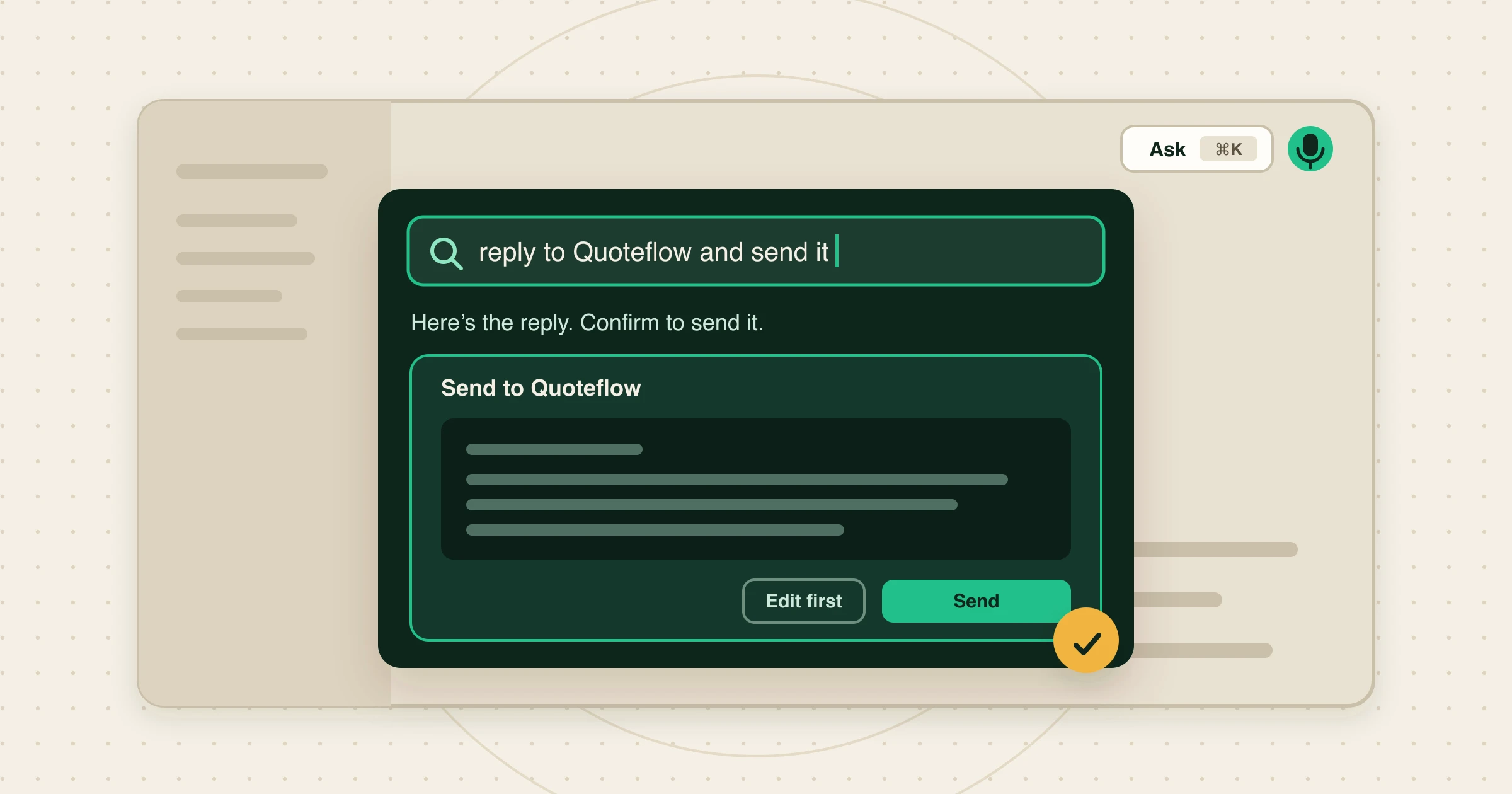
What the command bar is
The command bar is a small AI agent inside the PineLead dashboard. It has the same tools the MCP server gives Claude Code or Codex: it can read your leads, threads, drafts, prospects and results, change statuses and follow-ups, settle prospects, and prepare or send emails, plus a few that only make sense on screen, like opening two leads side by side.
You don’t have to learn commands. Type the way you would ask a colleague, or click the microphone and say it. It works out what it needs to read, does what it can, and tells you what happened in a sentence or two.
Ask it things
The most useful first question of the day:
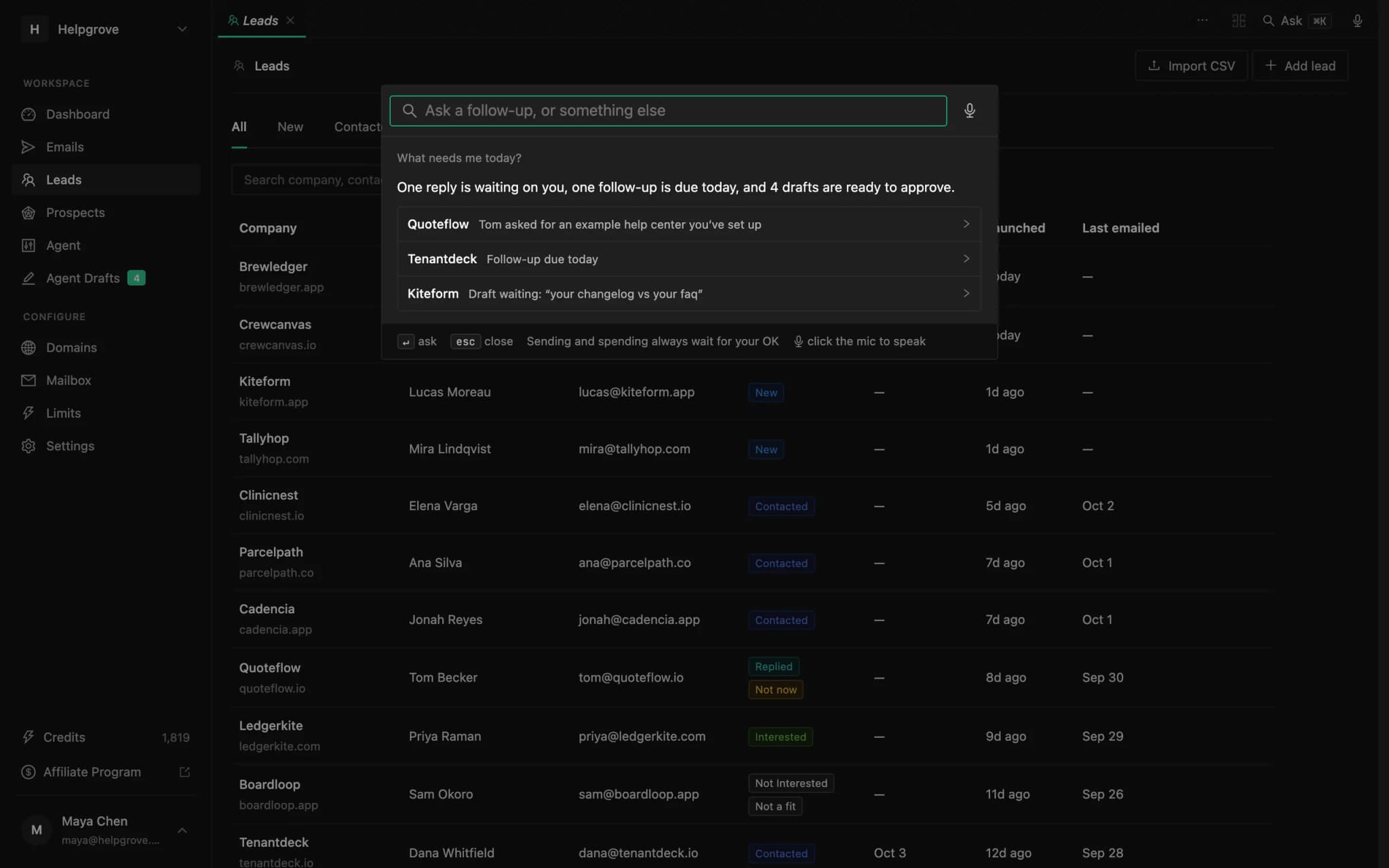
What needs me today?
You get the answer in plain words and, underneath, the replies waiting on you, follow-ups due and drafts ready, each one opening its lead in a tab. It is the morning routine in one line.
Other questions it answers well:
- “How is outreach going this month?” for emails sent, replies and reply rate.
- “Why did Palletsmith score 72?” for the reasoning behind a verdict.
- “Which drafts are waiting, and which is the weakest?”
Follow-up questions keep the thread: after “what needs me today?”, “open the first two side by side” knows which two you mean.
Tell it to do things
Changes that send nothing and cost nothing happen as soon as you ask: a lead’s status, a follow-up date, notes, rejecting a prospect, pausing the agent. You can chain them:
Mark Ledgerkite interested and remind me on Friday
The answer lists what was done (“Ledgerkite: marked interested, follow-up 2026-10-09”), and any lead tab you have open updates in place.
Pause the agent is worth knowing by heart. It stops unattended research and drafting at once, without touching anything already drafted. Useful before a holiday, or the moment a batch of drafts looks off.
Approve what matters
Some requests can’t be undone or cost money: sending an email, discarding or rewriting a draft, preparing drafts, promoting a prospect (a 5-credit unlock), running the agent on a company, switching the agent back on. For those, the command bar does the work up to the last step and shows you a card: the email exactly as it would go out, or the cost in credits. Nothing happens until you press the button on the card.
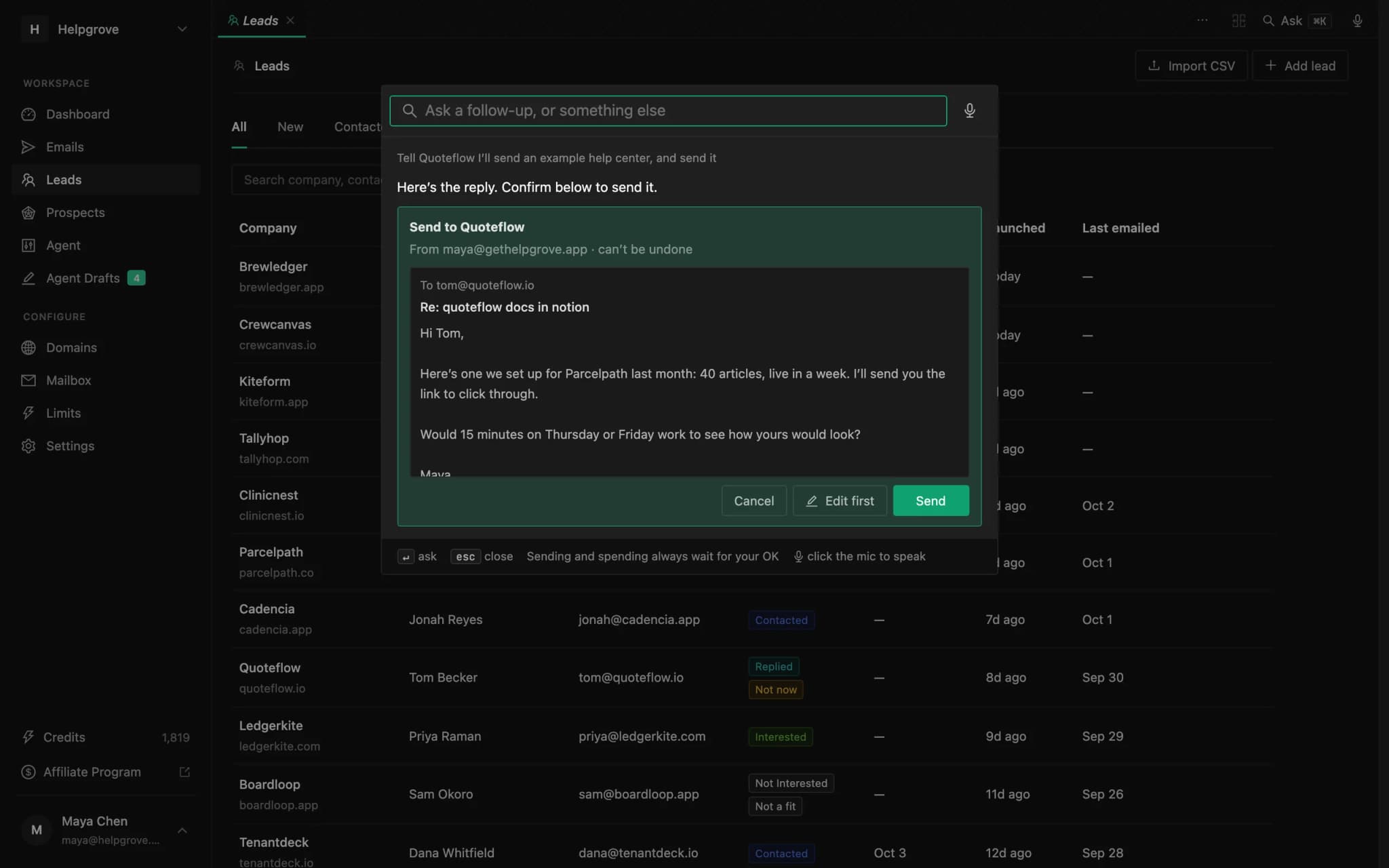
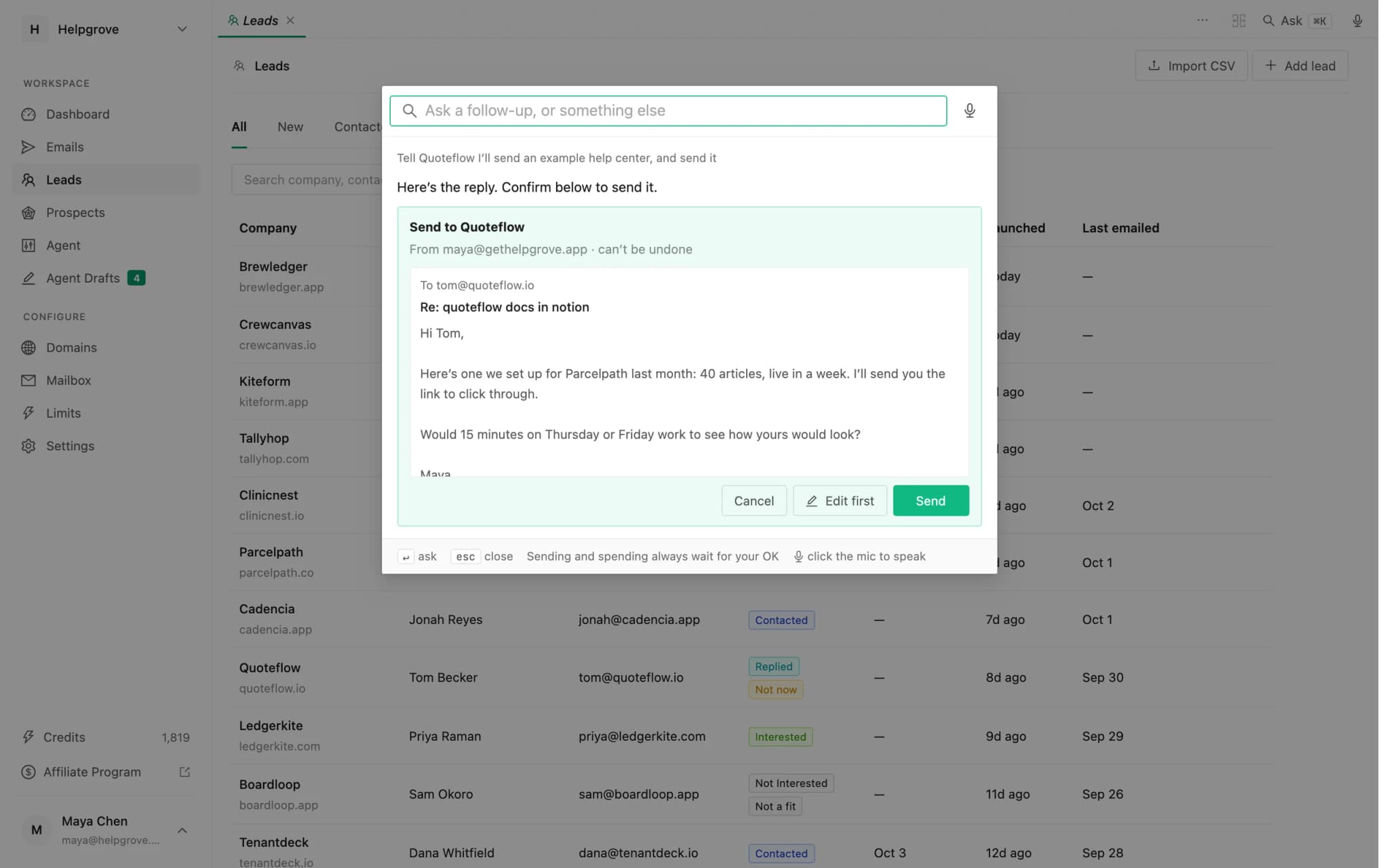
What runs when you confirm is exactly what the card shows; it can’t be changed on the way. For a reply you would rather finish yourself, Edit first puts it in the lead’s reply box instead. And if you only want a draft, say so: “write Quoteflow a reply” without “send” goes straight to the reply box.
Say it instead
Click the microphone, next to Ask ⌘K at the top right or inside the bar, and talk. Your words appear as you speak and the request goes when you stop. Voice uses your browser’s built-in speech recognition, so it works in Chrome, Edge and Safari.
Ten requests to start with
What needs me today?
How is outreach going this month?
Why did Palletsmith score 72?
Open the two newest replies side by side
Write Quoteflow a reply: I'll send an example help center tomorrow
Make the Kiteform draft shorter and drop the second paragraph
Promote Greenroster
Mark Ledgerkite interested and remind me on Friday
Prepare 3 emails
Pause the agent
What it won’t do
- Change your criteria, billing or settings. Those change everything after them and belong on their own pages.
- Delete leads, or anything already sent.
- Switch on auto-approve. That stays a deliberate setting.
- Send or spend without your click. Ever.
Asking costs nothing: credits are only spent by what you confirm. Each account gets up to 200 requests a day.
Where to find it
In PineLead
Top right, on every page
Look for Ask ⌘K and the microphone at the top right of the dashboard. If you don’t see them, the command bar isn’t on for your account yet. Everything it can do is listed in the docs.
Prefer working from a terminal? The same tools are on the MCP server for Claude Code, Codex and Cursor: start with the prospect triage walkthrough or the weekly review.
Frequently asked questions
- Can the command bar send emails?
- Only after you confirm. It writes the email and shows it on a card exactly as it would go out; it is sent when you press Send. You can also choose Edit first to finish it in the lead’s reply box.
- Does the command bar cost credits?
- Asking is free. Credits are only spent by actions you confirm, such as preparing drafts (3 credits each) or running the agent on one company (up to 15).
- Does voice work in every browser?
- Voice uses the browser’s built-in speech recognition, which works in Chrome, Edge and Safari. Typing works everywhere.
- How is the command bar different from the MCP server?
- They share the same tools. The MCP server is for your own AI agent (Claude Code, Codex, Cursor); the command bar is built into the dashboard and can also move the screen, such as opening leads side by side or putting a reply in a lead’s reply box.
Try it on your own market
PineLead finds new B2B prospects every day, researches and qualifies each one against your criteria, and drafts a first email you approve. Start with 100 free credits.
Keep reading
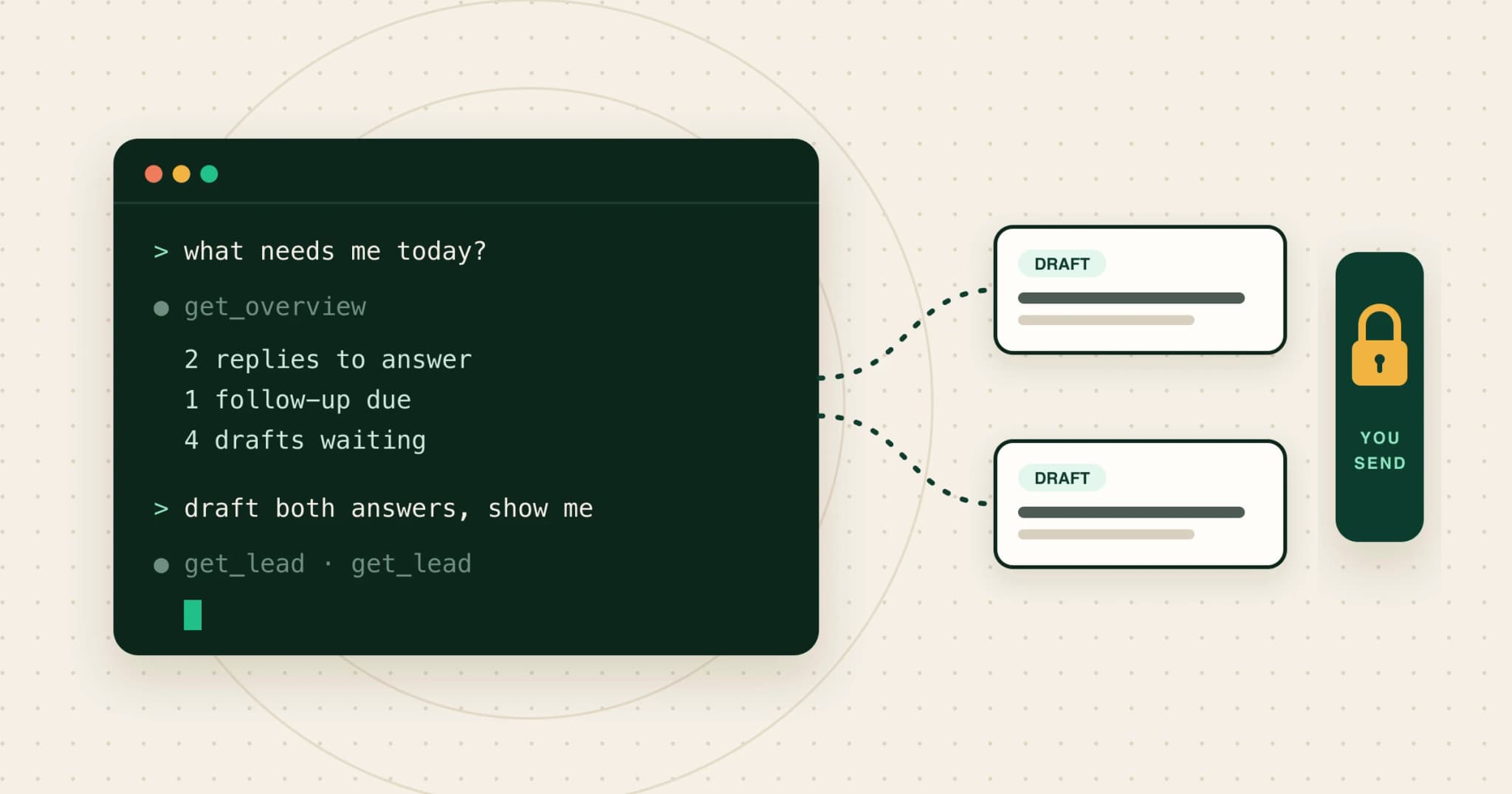 Run your outbound from Claude Code or CodexUse Claude Code, Codex or Cursor for outbound with MCP: five jobs worth handing over, with prompts, what to keep, the two safety rules, and a two-minute setup.
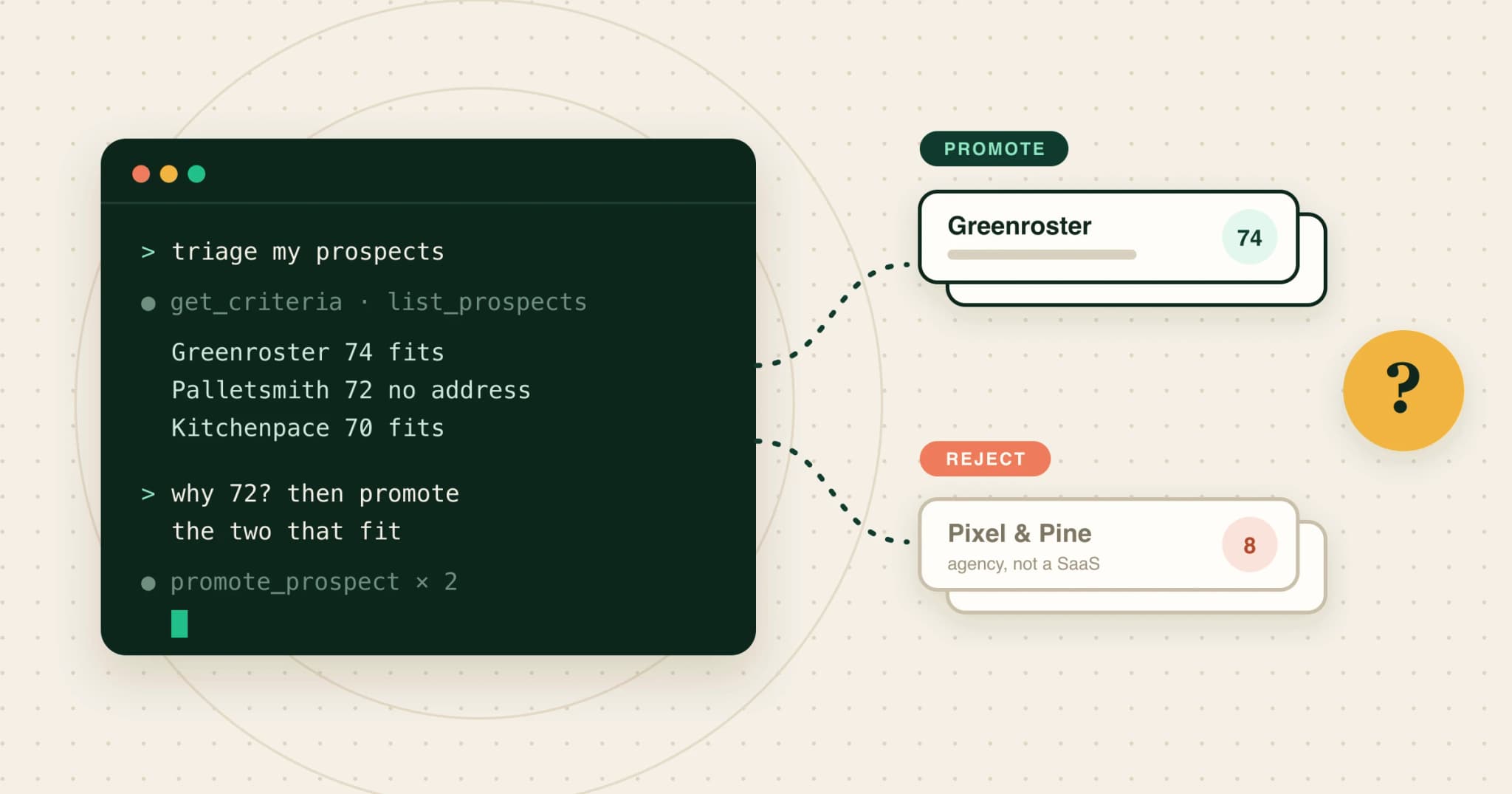 How to triage prospects from Claude with an MCP serverA step-by-step MCP walkthrough: read your criteria, list qualified prospects, ask why each one scored the way it did, promote or reject with a reason, and draft for the new leads, all from Claude.
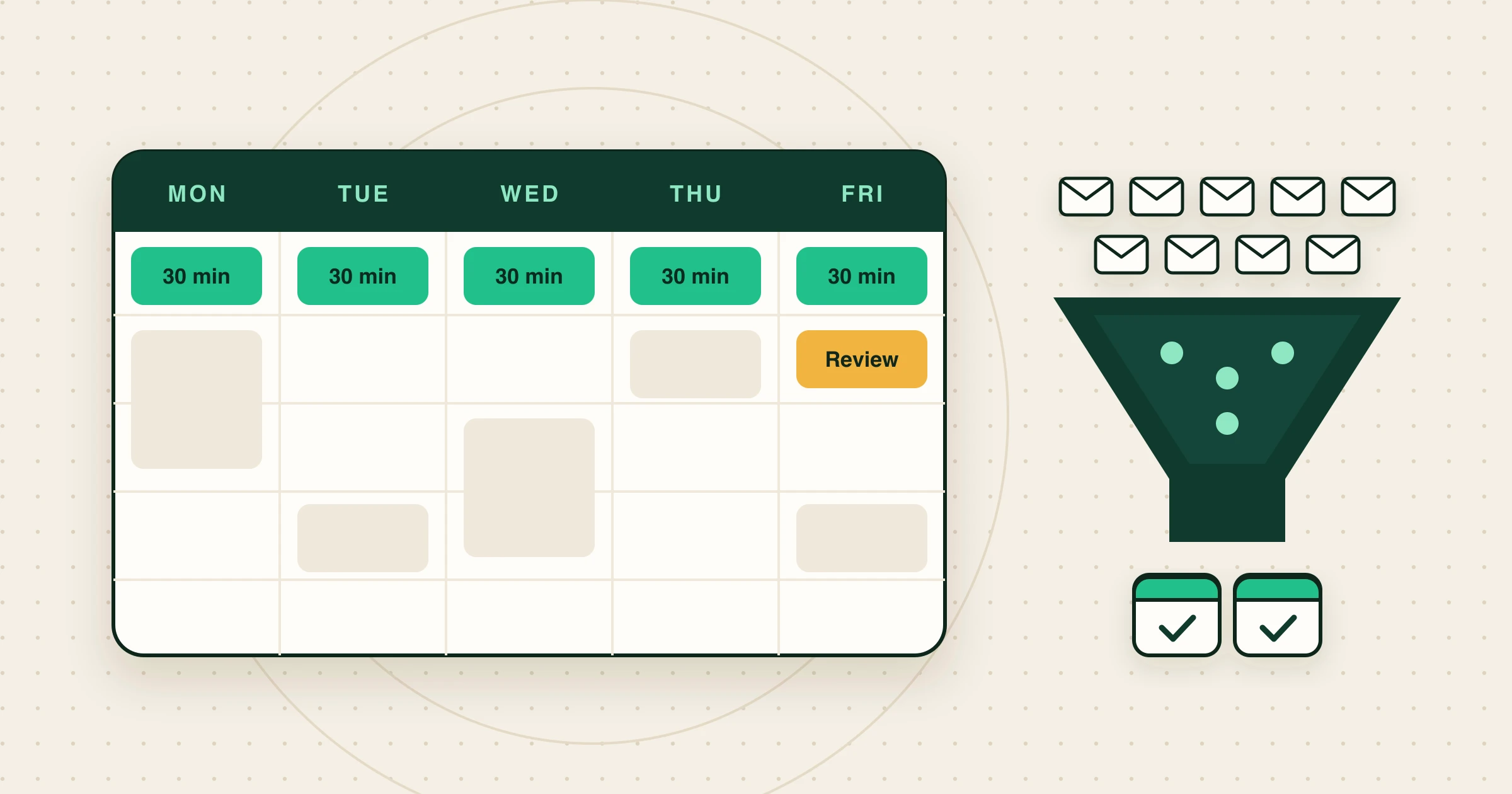 Founder-led outbound: a 30-minute daily system for your first customersHow founders run outbound without a sales team: where first B2B customers come from, honest funnel math, a 30-minute daily routine, and when to hand off.
Written with Skribra, the AI blog writer that researches, writes and publishes SEO articles for your site.