 Sev Leo, Founder of PineLead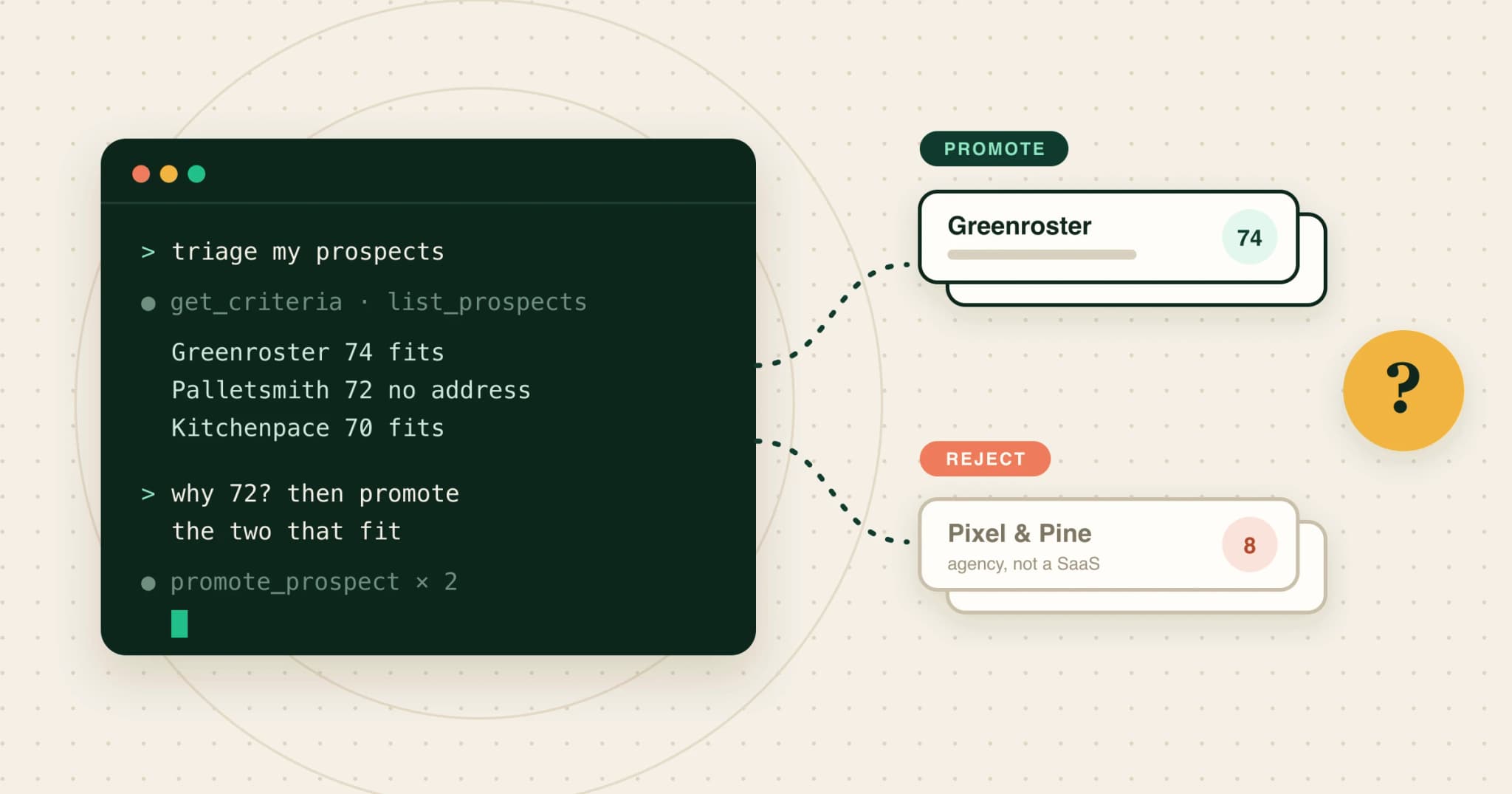
Why triage from your agent
PineLead judges every company it finds against the criteria you wrote, and gives each one a score from 0 to 100 and a sentence of reasoning. Most verdicts are obvious. The ones in the middle are where you earn your reply rate: a 68 that is really a 90 because they just launched a docs page, or an 81 that is really an agency in disguise.
On a page, that review is a lot of clicking: open the row, read the reasoning, open the site, come back, decide. In Claude it is a conversation. You ask why a company scored the way it did, push back, and settle it in one message. The tools are the MCP server’s, so the agent works as you, with your limits and your credits.
Most cold-email MCP servers are built around campaigns: Instantly’s, for example, creates, pauses and analyses campaigns and their leads. PineLead’s is built around the judgement step, so the reasoning behind each verdict is something your agent can read and argue with.
Before you start
Connect PineLead to Claude Code, Codex, Cursor or Claude Desktop once, with the snippet under Settings → API. It takes about two minutes; the setup walkthrough and the docs have the exact commands for each client. Then check it works:
What needs me in PineLead today?
You don’t need to turn on sending for anything in this guide. Triage never sends.
Step 1: Get the queue
In Claude Code, the server’s ready-made prompt is a slash command:
/mcp__pinelead__triage_prospects
Or say it in your own words:
Read my PineLead criteria, then list my qualified prospects that aren't leads yet. One line each: what they do, the score, and why. Recommend promote or reject, and wait for me.
The agent calls get_criteria first, so it judges against your words rather than its own idea of a good customer, then list_prospects. You get a short table: name, score, the reason, a recommendation. Nothing has changed yet.
Step 2: Ask why, for the unclear ones
For anything between about 60 and 80, ask for the reasoning in full. The agent calls get_prospect_activity, which returns what research found and why the verdict landed where it did.
Why did Palletsmith score 72? What would have to be true for it to be a clear yes?
That second question is the useful one. Here the answer is “a public pricing page and no help content, but no address was found”: the company fits, and the problem is reaching them, which Step 4 deals with. If the answer were “they might be a consultancy”, you would open their site and settle it yourself.
Step 3: Promote or reject, with a reason
Then decide, in one message:
Promote Greenroster and Kitchenpace. Hold Palletsmith. Reject anything on the list that turns out to be an agency, with the reason "agency, not a SaaS".
promote_prospect turns a company into a lead using the first address research found, for a one-time 5-credit unlock (once per project). If no address was found, the agent says so and asks you for one instead of guessing; give it an address you have checked. reject_prospect records your reason, and costs nothing.
Write the reason as a rule, not a mood. “Agency, not a SaaS” is a rule you can later add to your criteria. “Meh” is not. The weekly review reads these reasons back to you, and repeated ones are exactly what your criteria are missing.
Step 4: Run the agent on a borderline one
Sometimes the honest answer is “the research is thin”. You can have PineLead look again, ahead of its queue:
Run the agent on Palletsmith again and look for a way to reach them. Tell me the cost first.
run_prospect researches the company, judges it against your criteria and, if it fits, drafts a first email that waits for you. It costs up to 15 credits. A good agent states the price and asks before calling it; the server tells it to. Check the result a minute or two later with “what did the agent find about Palletsmith?”.
Step 5: First drafts for the new leads
Promoting a company doesn’t write to it. When you’re ready, ask for drafts. Each costs 3 credits and waits for your approval:
Draft first emails for the two leads I just promoted. Then review each against the research and tell me which opener is weakest.
draft_email_for_lead writes one to a named lead; prepare_drafts writes up to ten for whoever is next. Both stop at a draft. The review_drafts prompt does the second pass, and the first-email guide has what to check.
What to keep for yourself
- Your criteria. Let the agent point out a pattern (“you rejected five agencies this week”). Change the criteria yourself, on the Limits page, once you have seen it more than once. The ICP guide explains why criteria need to be checkable.
- Addresses. Never let a model invent one. A promoted lead with a made-up address is a bounce waiting to happen.
- Sending. Off by default for agents, and nothing in this loop needs it.
How the guardrails work
Each PineLead tool tells your client what kind it is: read-only, a change, or one that sends. The MCP specification calls these tool annotations, and clients use them to decide when to ask you first. Reading your queue never asks; promoting, rejecting and drafting are changes; sending is marked as reaching the outside world. Close’s server draws the same lines with three permission levels, read, safe write and destructive write, and it is a sensible pattern to expect from any tool you connect.
On top of that, PineLead logs what your agent does under Limits → Activity, and an agent can never switch on auto-approve.
The same queue in the dashboard
In PineLead
Every verdict, with its reason
The Prospects page is the same data your agent reads: each company with its score, its status and what you can do with it. Promote and reject there when you would rather click.
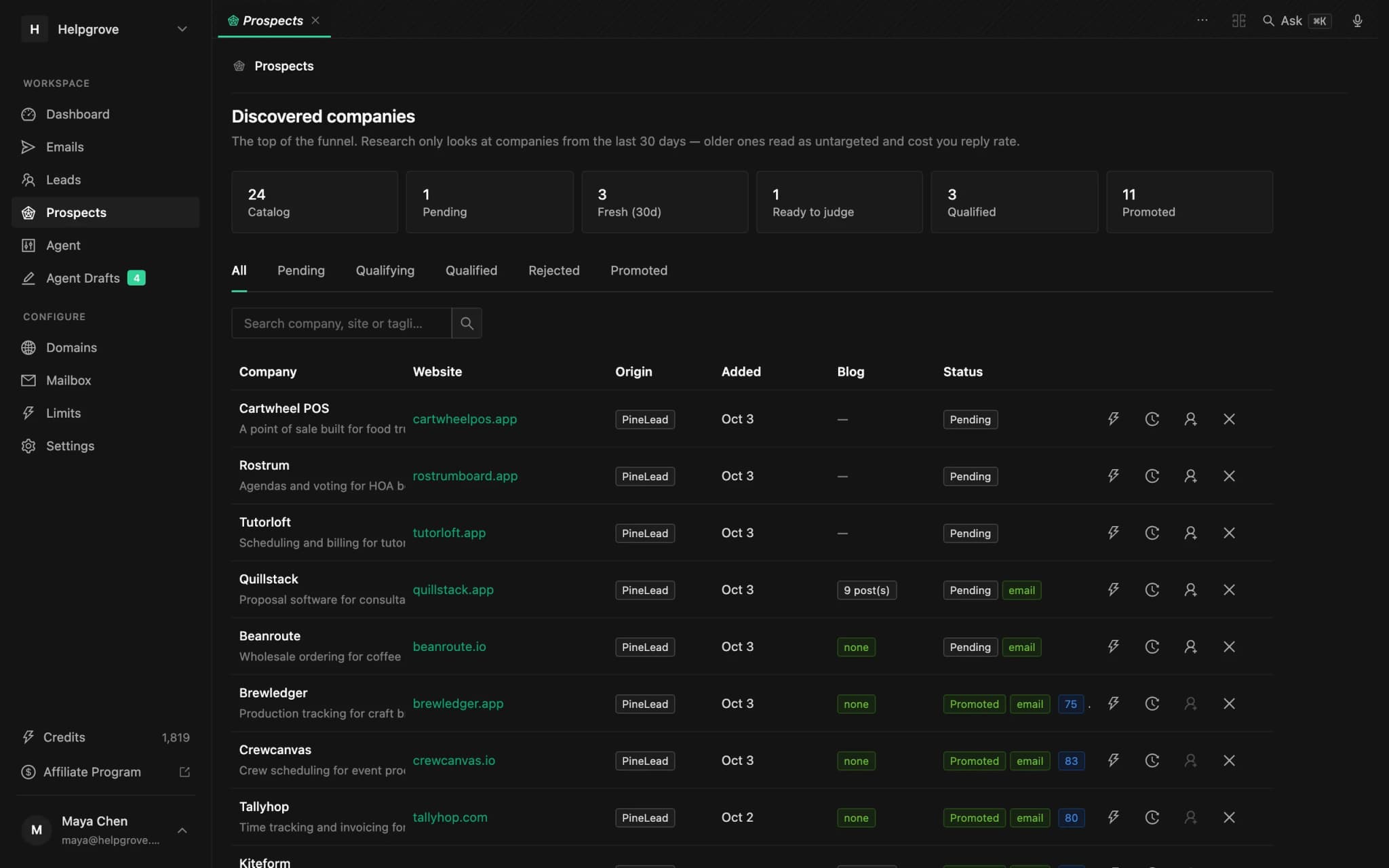
Prefer typing to clicking but not to a terminal? The dashboard’s command bar uses the same tools: press ⌘K and ask “why did Palletsmith qualify?”.
Frequently asked questions
- Can Claude qualify sales leads?
- It can read the qualification a tool already made, explain it, and act on your decision. In PineLead every company is scored against your criteria with a reason; Claude reads that through the MCP server, and you decide who to promote or reject.
- Does promoting a prospect send an email?
- No. Promoting turns the company into a lead you can email. Writing a first email is a separate step that costs 3 credits and waits for your approval.
- What does it cost to triage prospects from an AI agent?
- Reading and rejecting are free. Promoting a fit costs a one-time 5-credit unlock, running the agent on one company up to 15 credits, and each first-email draft 3. The server tells agents to state the cost before spending.
- Should I let the agent change my targeting criteria?
- No. Let it point out patterns, such as the same rejection reason five times in a week, and change the criteria yourself once you have seen the pattern more than once.
- Which AI clients work with this?
- Any MCP client: Claude Code, Claude Desktop, Codex and Cursor all work. Setup is a snippet from Settings → API with your account ID filled in.
Try it on your own market
PineLead finds new B2B prospects every day, researches and qualifies each one against your criteria, and drafts a first email you approve. Start with 100 free credits.
Keep reading
 Run your outbound from Claude Code or CodexUse Claude Code, Codex or Cursor for outbound with MCP: five jobs worth handing over, with prompts, what to keep, the two safety rules, and a two-minute setup.
 A weekly outbound review with your AI agentRun a 15-minute weekly cold-email review from Claude Code, Codex or Cursor: emails sent, reply rate per lead against your 30-day figure, positive replies, why prospects were rejected, and three checkable criteria changes.
 How to write an ICP an AI agent can actually qualify againstTurn your ideal customer profile into criteria an AI can check on a company’s website: observable signals, disqualifiers first, a template and a test loop.
Written with Skribra, the AI blog writer that researches, writes and publishes SEO articles for your site.